
How to Use Make.com for Small Business: Real Automation Workflows (2026)
To use Make.com for small business automation, create visual scenarios (workflows) using its drag-and-drop editor, connecting your business apps through pre-built modules. Typical automations include lead capture to CRM, automated email sequences, invoice generation from form submissions, Slack notifications for new sales, and daily reporting dashboards.
Learn how to use Make.com for small business automation. Step-by-step guide to building visual scenarios for lead management, email campaigns, CRM sync.
Epiphany Dynamics is an AI automation agency: we help businesses find and fix operational bottlenecks with AI receptionists, lead follow-up, and workflow automation.
Free 30-minute audit. We name at least 3 things you can automate, ranked by impact.
Book a free AI audit
Patrick Gibbs
To use Make.com for small business automation, create visual scenarios (workflows) using its drag-and-drop editor, connecting your business apps through pre-built modules. Typical automations include lead capture to CRM, automated email sequences, invoice generation from form submissions, Slack notifications for new sales, and daily reporting dashboards. Make.com offers a free testing tier and paid plans based on operation volume, so check the live pricing page before choosing a plan.
Why Small Businesses Choose Make.com
Make.com (formerly Integromat) sits between Zapier and n8n in terms of complexity and capability. Its more powerful than Zapier for complex workflows, but easier to set up than n8n. The key difference is Make.coms visual scenario builder, which lets you see data flowing between apps in real time.
For small businesses, Make.com excels at: complex conditional logic (if this happens, do that, otherwise do something else), data transformation (reformatting, filtering, and combining data between apps), error handling with automatic retry, and real-time data processing with webhooks.
Pricing is transparent compared with many automation tools: there is a free tier for testing and paid tiers that scale with monthly operation volume and team needs. Most small businesses start on a lower paid plan once live workflows begin running every day.
Step 1: Set Up Your Make.com Account and Explore the Interface
Sign up at Make.com with your Google or work email. The free plan gives you access to the core builder, which is enough to build and test simple workflows before you put real business processes on a paid plan.
The Make.com interface has three main areas: Scenarios (where you build workflows), Templates (pre-built scenarios you can customize), and Integrations (the app connector catalog).
Start by browsing Templates for your industry. Make.com offers templates for real estate lead capture, ecommerce order processing, CRM data sync, and many more. Using a template as a starting point dramatically cuts your setup time.
Step 2: Build a Lead Capture to CRM Scenario
The most common small business automation routes form submissions into a CRM for immediate follow-up.
Create a new scenario. Add a trigger module for your form tool (Typeform, Google Forms, Gravity Forms, or a webhook). Set it to “Watch Responses” or similar. Add your CRM module (HubSpot, Salesforce, Pipedrive, or Airtable). Configure it to create a new contact or deal with data from the form. Add a Slack or Discord module to notify your sales team of the new lead.
Make.com shows you sample data from each module, so you can test that fields map correctly before activating the scenario. This visual data flow is Make.coms biggest advantage over Zapier.
Step 3: Automate Appointment Scheduling and Reminders
Connect your scheduling tool (Calendly, Acuity, Book Like A Boss) to Make.com. When a new booking is created: add the appointment to your Google or Outlook calendar with all details, send a confirmation email from your branded email address, add a CRM contact entry if the person is new, and trigger reminder emails on your preferred schedule.
This workflow is valuable because it removes repeated appointment admin from your day: calendar updates, confirmation messages, CRM entry, and reminders no longer need to be handled by hand. Start simple, test every branch, and expand once the basic booking path works reliably.
Step 4: Build Automated Invoice and Payment Workflows
Connect your invoicing tool (QuickBooks, Xero, Invoice Ninja, or Stripe) to Make.com. Create scenarios for: automatically generating invoices from completed service tickets or time entries, sending payment reminders after invoices become overdue, marking invoices as paid when Stripe payment comes through, and sending thank-you emails with receipt attachments.
Make.coms data transformation tools let you calculate late fees, apply discounts, and format currency values correctly — things that require code nodes in other platforms.
Step 5: Create Business Reports Automatically
Make.com can pull data from multiple sources and compile it into daily, weekly, or monthly reports.
Build a scenario that: queries your CRM for new leads and deals won this week, pulls email campaign stats from Mailchimp or ActiveCampaign, checks your Google Analytics for website traffic, and compiles everything into a Google Sheet or sends a formatted email digest to your team.
Set this to run every Monday morning. Your team gets a complete performance snapshot without anyone spending an hour pulling reports.
Re-run the same test event without creating another job
Before enabling a scenario for customers, pass one invented request through it and record the source event identifier, destination record and notification. Submit that same event again. Decide whether the correct behavior is to update the existing record or ignore the repeat; creating a second invoice, appointment or customer message shouldn't be an accidental consequence of retrying.
Next, test a missing required field and a destination that rejects the request. Keep failed items visible with an owner and a safe retry path. A successful first module doesn't prove the final business action happened.
If the workflow needs a different operating model, compare alternatives to Zapier and Make. For spreadsheet-driven messages, use the Excel email tutorial and begin with draft output.
Frequently Asked Questions
Is Make.com better than Zapier for small business? Make.com is better for complex workflows with conditional logic and data transformation. Zapier is better for simple one-to-one integrations. If you need more than a basic “if this then that” workflow, choose Make.com.
How many operations per month does a small business need? The answer depends on how many workflows run, how often they trigger, and how many steps each scenario contains. Start with the free plan, track the operation count while testing, and upgrade only when your live workflows consistently need more capacity.
Can Make.com integrate with my specific software? Make.com has a large pre-built integration catalog. Search their app directory for your tools. If your tool isnt listed, you can use HTTP modules or webhooks to connect any REST API.
Do I need to know how to code to use Make.com? No. The visual scenario builder handles everything through drag-and-drop modules. Advanced features like data transformation use a visual formula editor with dropdown menus, not raw code.
Is my data secure on Make.com? Make.com is SOC 2 Type II certified and GDPR compliant. Enterprise plans include dedicated IP addresses and data residency options. For most small businesses, the standard plan security is sufficient.
Start Building Automations on Make.com
Make.com gives small businesses enterprise-level automation capability without requiring a developer for every workflow. The visual interface means you can build and test a simple first scenario without formal technical training.
Start with one workflow — lead capture or appointment reminders give the quickest wins. Our Make.com setup and integration guide walks through connecting your specific tools. For pre-built industry workflows, check our Make.com template library.
Book a free automation audit to identify the best workflows for your specific business processes.
Patrick Gibbs
AI Automation Expert
Patrick Gibbs helps professional practices implement AI automation that captures more leads, books more appointments, and scales without adding overhead. He's the founder of Epiphany Dynamics and creator of the AI Front Desk system.
Related Solutions
Build this into a real workflow
Related Posts
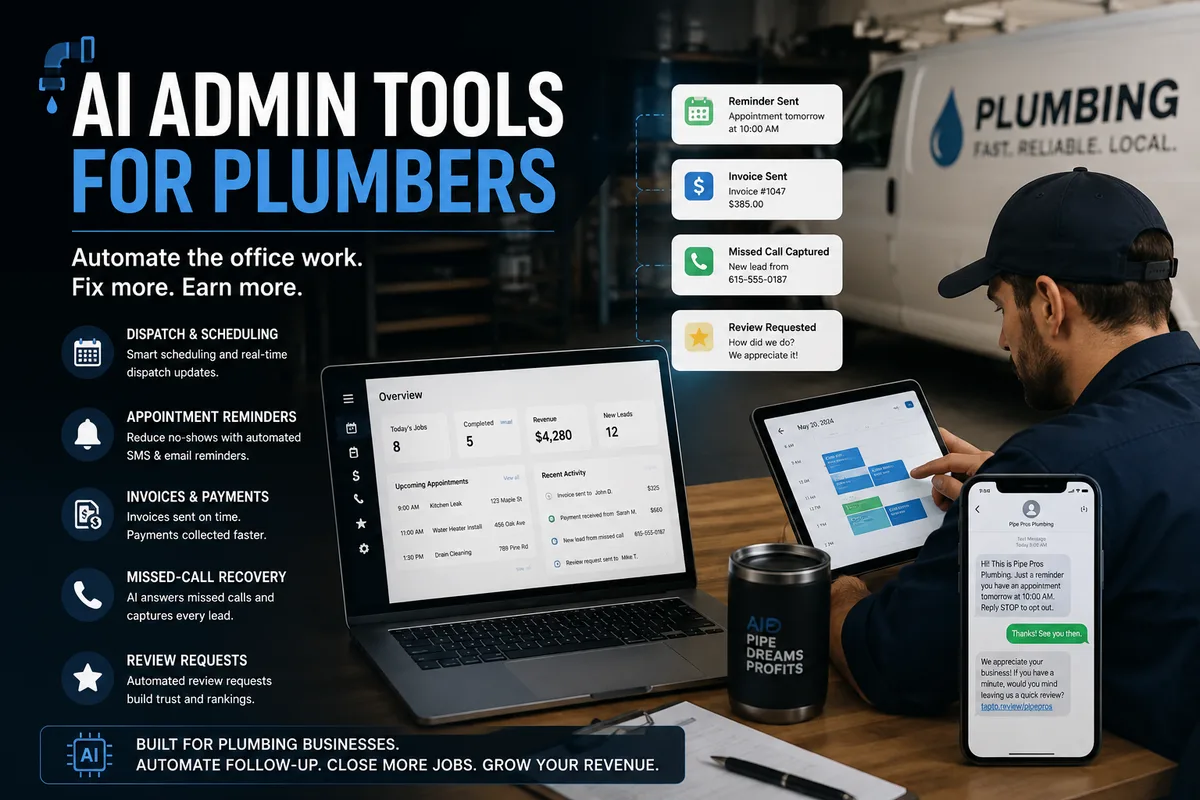
AI Admin Tools for Plumbers: What They Are and How to Choose
AI admin tools automate dispatch, reminders, invoicing follow-up, missed calls, and review requests for plumbers. What they do and how to choose.
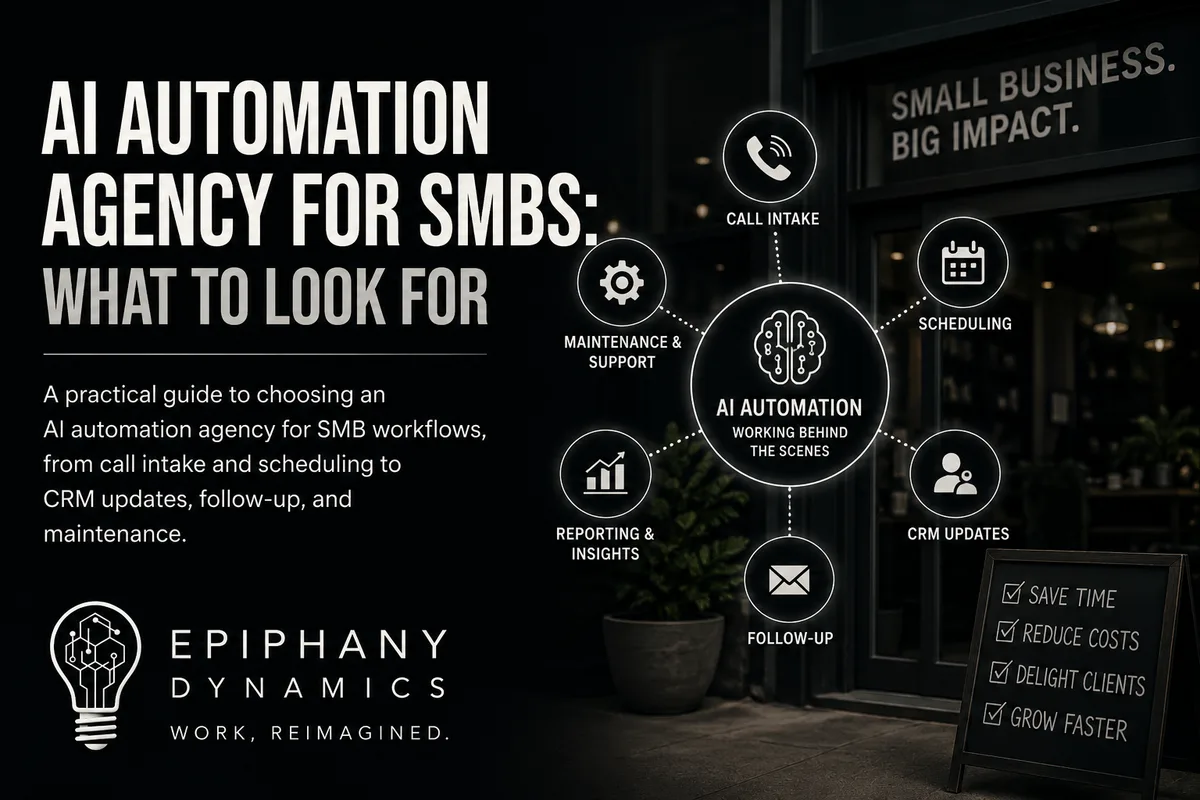
AI Automation Agency for SMBs: What to Look For
A practical guide to choosing an AI automation agency for SMB workflows, from call intake and scheduling to CRM updates, follow-up, and maintenance.
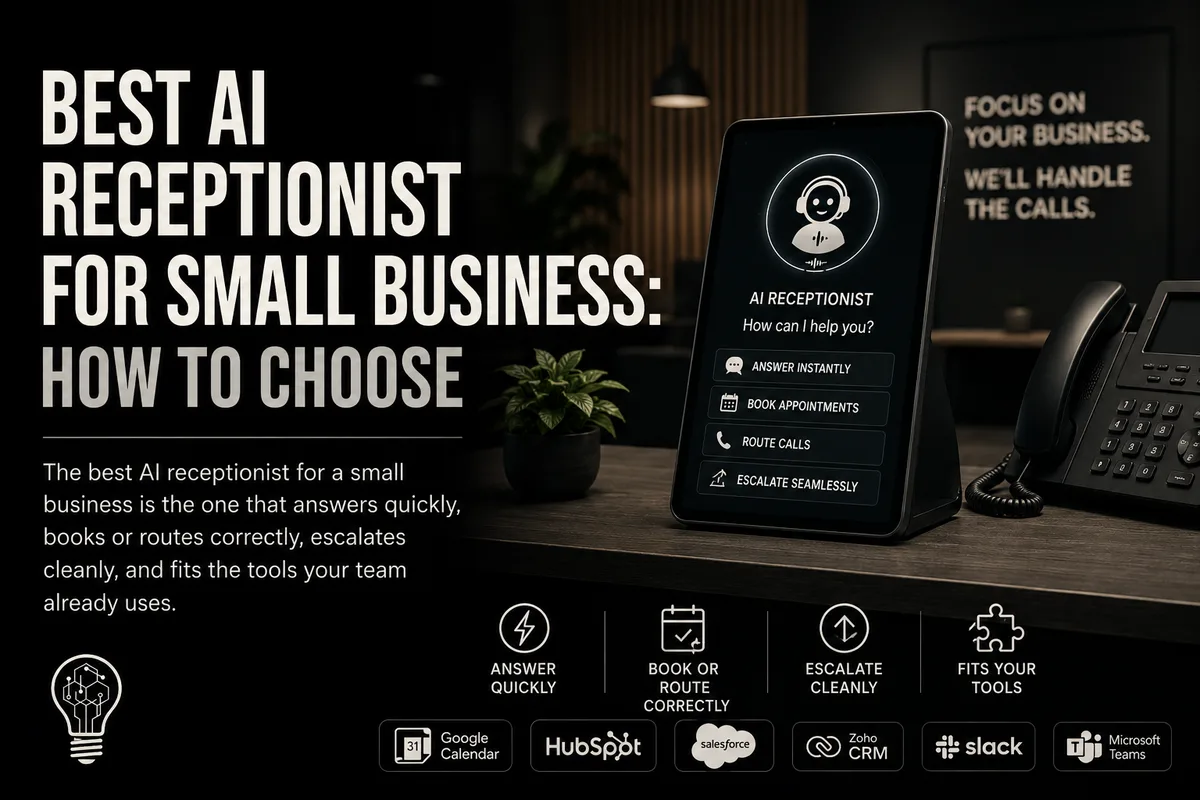
Best AI Receptionist for Small Business: How to Choose
The best AI receptionist for a small business is the one that answers quickly, books or routes correctly, escalates cleanly, and fits the tools your team.