
How to Automate Data Entry in Excel: A Practical 2026 Guide
Excel automates data entry through four built-in tools: Flash Fill (pattern-based column completion, zero code), Data Validation with Forms (structured input with dropdown controls), Power Query (automatic transformation of recurring data imports), and VBA Macros (scripted automation of multi-step sequences). Used well, these tools reduce repetitive entry, prevent avoidable mistakes, and make recurring imports easier to maintain.
Manual Excel data entry eats a meaningful share of the average small business's week. Here's how macros, Power Query, and Flash Fill eliminate most of that.
Epiphany Dynamics is an AI automation agency: we help businesses find and fix operational bottlenecks with AI receptionists, lead follow-up, and workflow automation.
The free 30-minute AI Operations Audit is a conversation about a normal week in your business and where the work piles up. We find the one change that would give you the most time back and send you a plain-English plan for it. No forms and no pitch.
Book a free AI audit
Patrick Gibbs
Excel automates data entry through four built-in tools: Flash Fill (pattern-based column completion, zero code), Data Validation with Forms (structured input with dropdown controls), Power Query (automatic transformation of recurring data imports), and VBA Macros (scripted automation of multi-step sequences). Used well, these tools reduce repetitive entry, prevent avoidable mistakes, and make recurring imports easier to maintain.
Most business owners underestimate how much time their team spends doing something Excel could handle automatically. If you're exploring automation beyond spreadsheets, our AI automation small business guide covers the full landscape. If someone on your staff is copying data from one place into a spreadsheet more than twice a week, you have an automation problem. Not a "we need better software" problem. An "we haven't set up Excel correctly" problem.
This guide walks through each automation option in plain terms, with actual steps you can follow today. No programming background required for most of it. The VBA section gets mildly technical, but even that is more accessible than most people expect.
The Real Cost of Manual Data Entry
Bad data is expensive at any scale, and even for a small business the math is painful. Manual entry creates wrong records, duplicate rows, skipped fields, and downstream rework that costs far more than preventing the mistake at the point of entry.
The labor cost alone is significant. Count how much time your team spends copying, cleaning, and correcting spreadsheet data, then multiply it by the fully loaded cost of the people doing the work. When you quantify the cost of missed business calls alongside wasted data entry hours, the total operational drag becomes hard to ignore. That's before accounting for errors. Fixing a data error after it enters a system reliably costs more than preventing it at the point of entry.
What makes this particularly costly is that the work is almost always interruptible. Someone starts entering data, gets pulled into a meeting, comes back, loses their place, and either re-enters duplicate records or skips some entirely. The task feels low-stakes because it's repetitive, but the output feeds everything downstream: invoices, reports, customer records, inventory. When the data is dirty, every decision built on it is questionable.
Your Excel Automation Options (Ranked by Complexity)
Excel offers four main automation paths for data entry, each with a different setup effort and capability ceiling. Flash Fill handles pattern-based transformations. Data Validation controls what gets entered. Power Query automates data import and transformation from external sources. VBA Macros handle the most complex, multi-step sequences but require basic scripting knowledge to get past what the recorder captures.
| Tool | Setup Effort | Coding Required | Best For | Value Signal |
|---|---|---|---|---|
| Flash Fill | Lowest | None | Reformatting, splitting, combining fields | Less manual cleanup for pattern-based fields |
| Data Validation | Low | None | Reducing entry errors, enforcing formats | Fewer bad values entering the sheet |
| Power Query | Moderate | Minimal (M code optional) | Recurring CSV or database imports | Repeatable imports instead of manual cleanup |
| VBA Macros | Highest | Basic VBA | Multi-step repetitive workflows | Reusable workflows for repeated actions |
Start with the simplest tool that solves your problem. Flash Fill handles more than most people realize, and it's worth trying before writing a single line of VBA. The upgrade path is predictable: Flash Fill for one-time transformations, Data Validation for ongoing error prevention, Power Query for recurring imports, macros for everything else.
Flash Fill and Data Validation: The Quick Wins
Flash Fill detects column patterns and completes them automatically when you press Ctrl+E on Windows (or Cmd+E on Mac). It handles name splitting, phone number reformatting, email domain extraction, and similar transformations without formulas or code. Data Validation restricts input cells to approved values via dropdowns, date ranges, or number constraints, reducing mistakes on controlled fields.
Flash Fill is genuinely underused. If you have a column of full names and need a column of first names only, type the first name in the adjacent cell and press Ctrl+E. Excel figures out the pattern and fills the rest. The same approach works for reformatting phone numbers from "6155551234" to "(615) 555-1234", or pulling domain names from a list of email addresses. For single-column transformations, it's fast enough to feel like a cheat code.
Data Validation is what you use to prevent errors before they happen. Select a column, go to Data > Data Validation, and restrict input to a dropdown list, a specific date range, or whole numbers within a set boundary. For any field with a known set of valid values (status, category, region, product type), a validation dropdown eliminates the typos, abbreviation inconsistencies, and capitalization variations that make data messy. The user just sees a helpful dropdown instead of an empty cell.
How to Set Up a VBA Macro for Data Entry
VBA macros run through Excel's built-in Developer tab using the Visual Basic Editor. The Macro Recorder translates your manual actions into reusable code without scripting by hand. A basic data entry macro can auto-populate lookup fields, clear and reset form cells after submission, and log each entry to a master sheet automatically.
Here's how to build your first one:
- Enable the Developer tab (File > Options > Customize Ribbon > check "Developer").
- Click "Record Macro", give it a name without spaces, and assign a keyboard shortcut like Ctrl+Shift+D.
- Perform the actions you want automated: copy data from the form area, paste it to the log sheet, add a timestamp, then clear the form.
- Click "Stop Recording". The macro is now saved.
- Test it on a sample entry. Then open the VBA editor (Alt+F11) to review the recorded code. Most recorded macros work as-is, but reviewing them helps you catch hard-coded cell references that will break if your layout changes.
Where macros save the most time is in repetitive sequences people run constantly. Enter data in a form area, press a keyboard shortcut, the data gets stamped with a date and moved to a log sheet, the form clears, and you're ready for the next entry. The Macro Recorder captures the basic steps. Conditional logic, error handling, and looping over ranges require basic VBA, but there's enough freely available, copy-paste-ready code online that you rarely need to write it from scratch.
One common mistake: macros break when source data columns shift position. Instead of relying on column letters like "C" or "F", reference columns by header name using a small lookup at the top of your code. It takes a little extra setup and saves debugging when someone inserts a column later.
Power Query: The Right Tool for Recurring Imports
Power Query (found under the Data tab as "Get & Transform Data") connects Excel to external sources and applies repeatable transformations on each refresh. Once configured, an import that previously required manual copy-paste-clean work can run through a repeatable refresh. Supported sources include CSV files, Excel files, SQL databases, SharePoint lists, and web tables.
The typical use case looks like this: every Monday, someone exports a CSV from their CRM or accounting software, opens it in Excel, manually removes header rows, reformats dates, deletes blank rows, and copies the cleaned data into the master sheet. With Power Query, you import the CSV once, apply the transformations in the query editor (entirely point-and-click, no code required), and save the connection. Every subsequent refresh applies the same cleaning steps again.
Power Query handles messy data better than manual cleanup because the transformation steps are recorded and applied consistently on every run. You can merge data sources, pivot or unpivot columns, filter rows by condition, and create calculated columns, all without formulas. It also keeps an audit trail: if something looks wrong after a refresh, you can step through the applied steps one at a time and find exactly where the data changed. For businesses pulling from multiple systems into a single report on a regular schedule, Power Query pays back through consistency and repeatability.
When Excel Automation Isn't Enough
Excel automation breaks down when data arrives from multiple live systems at the same time, when multiple users need to enter data simultaneously (Excel files lock on edit, creating version conflicts), and when the process requires conditional branching that exceeds what VBA reasonably handles. At that threshold, businesses typically move to database tools, no-code platforms like Make.com, or purpose-built integrations that remove Excel as the middle layer entirely.
This isn't a criticism of Excel. It was designed as a calculation and analysis tool, not a database or workflow engine. The problems appear when businesses stretch it into roles it wasn't built for: multi-user data collection, real-time system syncing, or processes that touch systems outside the spreadsheet. If you're hitting these walls, a better macro won't fix it. The solution is a different tool.
The practical signal is when maintaining the automation takes more time than the automation saves. A Power Query connection that breaks every time the source file changes column order, or a macro that needs constant editing because the underlying process keeps evolving, are signs you've hit the ceiling. At that point, the conversation shifts from "how do we automate this in Excel" to "what system should actually own this data." That's a different question with a different answer, and it's worth asking honestly before spending more time on VBA workarounds.
If the next step is outbound communication from the same workbook, you can automate emails from Excel with VBA, Power Automate, or Python without abandoning the spreadsheet as your source list.
For further reading, see How to Automate Intake Forms: Eliminate Paperwork and Data Entry (2026).
Building a Sustainable Automation Setup
A sustainable Excel automation setup documents every macro and Power Query connection with a plain-text comment explaining what it does and what it depends on. This prevents the common scenario where a business loses their "Excel person" and the automation becomes a black box no one can maintain. For anything beyond Flash Fill, maintain a simple "automation log" sheet listing each tool, its purpose, its data sources, and who owns it.
The biggest risk with Excel automation isn't complexity. It's fragility. An automation that works perfectly and then breaks because someone renamed a source file or added a column to an import will create more frustration than the original manual process. Build in at least one layer of resilience: don't hardcode file paths in macros (use relative paths or a dedicated settings cell that's easy to update), use named ranges instead of raw cell addresses where possible, and test your Power Query connections whenever the upstream system changes.
Document as you build. A comment in a VBA macro that reads "This pulls data from column F, which is the Invoice Date field in the current export format" saves debugging when someone looks at the code later. It's the unglamorous part of automation, but it's what separates automation that compounds in value over time from automation that becomes a fragile dependency no one wants to touch.
For most small and mid-sized businesses, the tools covered here, applied systematically, can reclaim meaningful time without buying new software or hiring a developer. Start with Data Validation on your most error-prone fields, add Flash Fill to your regular cleanup workflow, and then tackle a Power Query connection for your most frequent import. That sequence tends to deliver the biggest return for the lowest setup investment. If your processes eventually outgrow what Excel can handle cleanly, that's a good sign the business has scaled, and a conversation with an AI automation specialist will help map what a proper integration looks like from there. Our workflow automation guide for service businesses covers what that next step typically looks like, and the best AI tools for service companies breaks down the platform options with realistic ROI planning guidance.
Once the rows are clean, the Excel email tutorial includes a downloadable draft generator and sample data. It lets you inspect recipients and message amounts before connecting a sender.
Frequently Asked Questions
Q: How much can automating Excel data entry actually save your business?
Use your own labor baseline. Count the time spent on manual entry, cleanup, and rework, multiply it by fully loaded labor cost, and compare that with the setup time for Flash Fill, Data Validation, Power Query, or macros. The error-prevention value often matters as much as the time saved.
Q: Do you need to know coding to automate Excel data entry?
No. Flash Fill and Power Query require no programming and handle common automation tasks such as pattern recognition, recurring imports, and data cleaning. VBA macros add deeper capabilities for complex workflows, but many teams can solve their first automation problems without writing code.
Q: What's the difference between Power Query and Flash Fill for automation?
Flash Fill recognizes patterns in existing data and auto-fills matching columns, which is ideal for one-time reformatting tasks. Power Query is built for recurring imports and transformations, automatically pulling and cleaning the same data source on repeat with a single refresh.
Q: How much does automating Excel reduce data entry errors?
Automated entry reduces preventable human errors, and data validation rules catch mistakes before they enter the system. That matters because fixing errors after they're in place costs more than preventing them at point of entry.
Patrick Gibbs
AI Automation Expert
Patrick Gibbs helps professional practices implement AI automation that captures more leads, books more appointments, and scales without adding overhead. He's the founder of Epiphany Dynamics and creator of the AI Front Desk system.
Related Solutions
Build this into a real workflow
Related Posts

What Two-Way Sync Between AI and ServiceTitan Looks Like in Practice
Two-way sync between AI and ServiceTitan means data flows both directions: the AI reads live job and customer data from ServiceTitan, and writes new bookings.
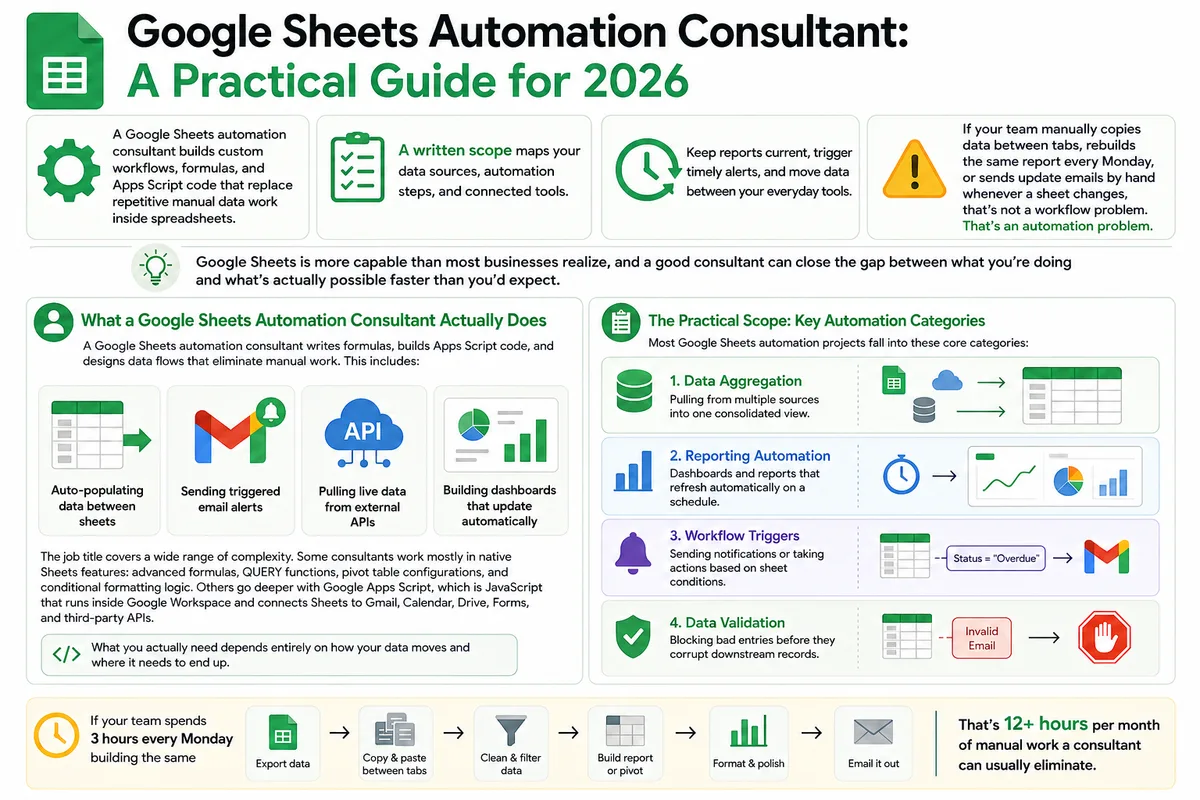
Google Sheets Automation Consultant: A Practical Guide for 2026
Most businesses don't track what spreadsheet work actually costs them. Here's what a Google Sheets automation consultant does in 2026, how to judge the value.

AI Receptionist for ServiceTitan: How the Integration Actually Works
A plain-English guide to connecting an AI receptionist to ServiceTitan through its API, what gets automated, and what your account needs first.